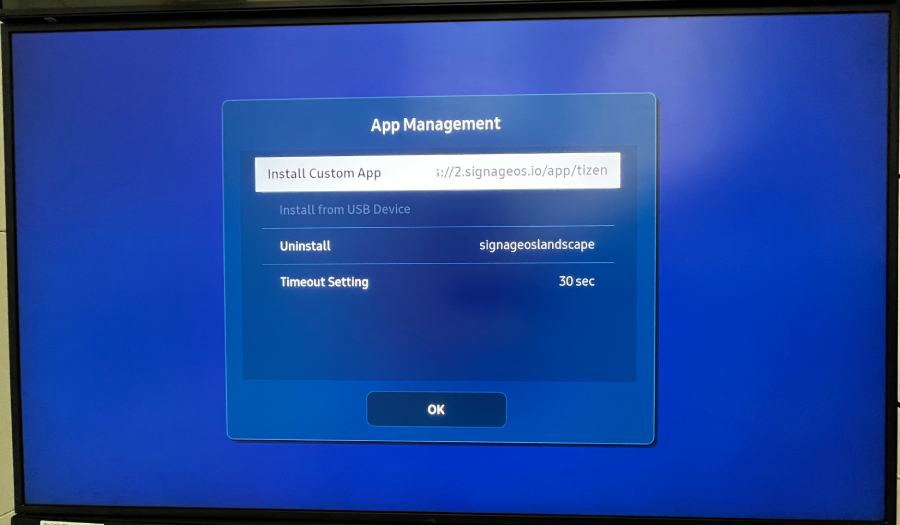
> ## Documentation Index
> Fetch the complete documentation index at: https://docs.signagelab.com/llms.txt
> Use this file to discover all available pages before exploring further.

# Samsung Tizen

> Installation guide for Samsung Tizen displays.

<Accordion title="Samsung Tizen (F-line, H-line, Q-line, N-line)">
  ## Installation steps

  **Important:**

  <Warning>It is necessary to set the current time and date, otherwise the functionality will not be available.</Warning>

  <Steps>
    <Step title="Turn on display, go through basic settings (clocks, WiFi settings etc.) and switch source to HDMI or PC" />

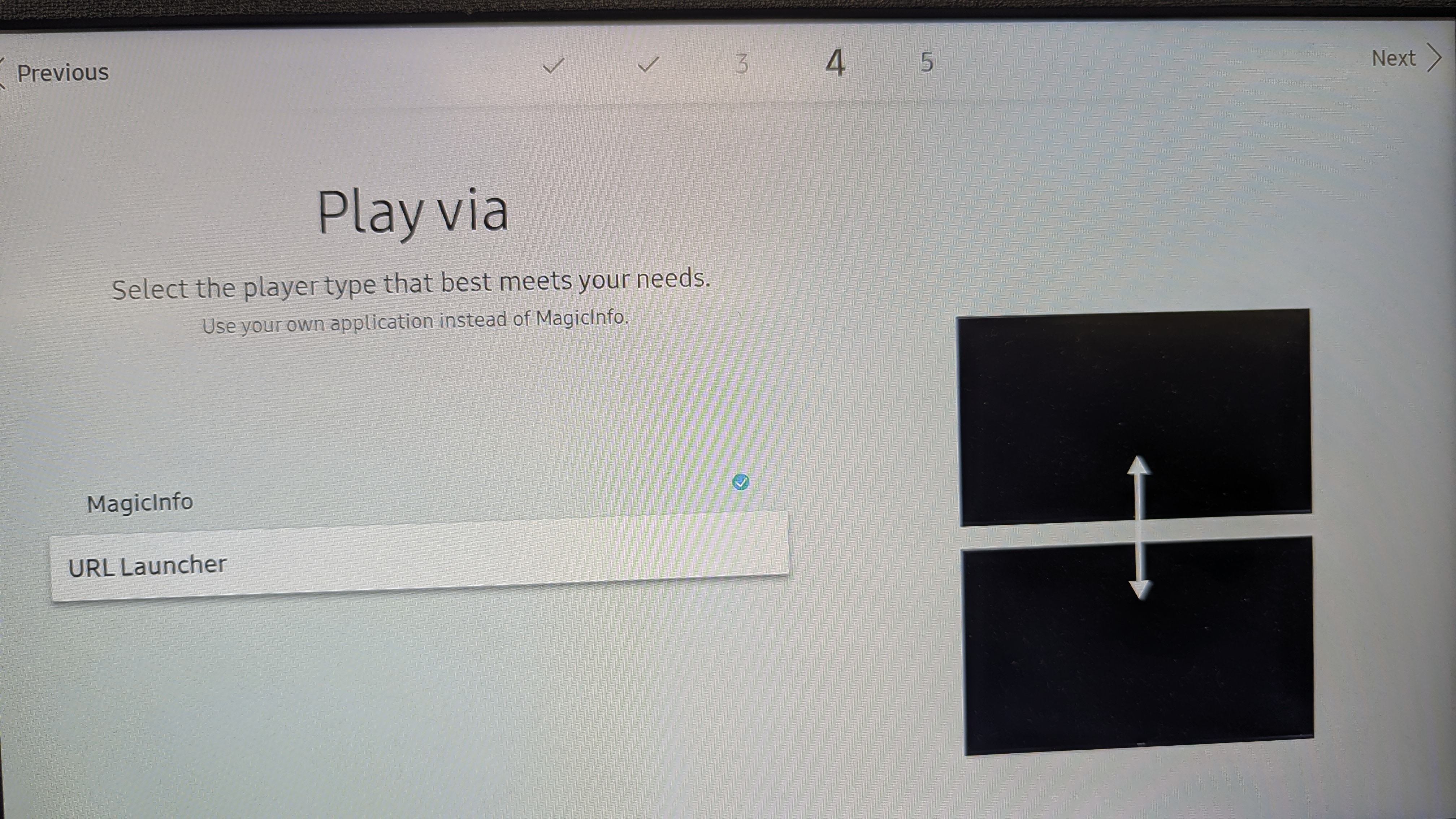
    <Step title="Press Menu → System → Play via" />

    <Step title="Select URL Launcher">
      ![image](https://signagelab-alfa-space.fra1.digitaloceanspaces.com/documentation/images/en/samsung/s1.jpg)
    </Step>

    <Step title="Press HOME on IR remote control" />

    <Step title="Go to URL Launcher Settings → URL address" />

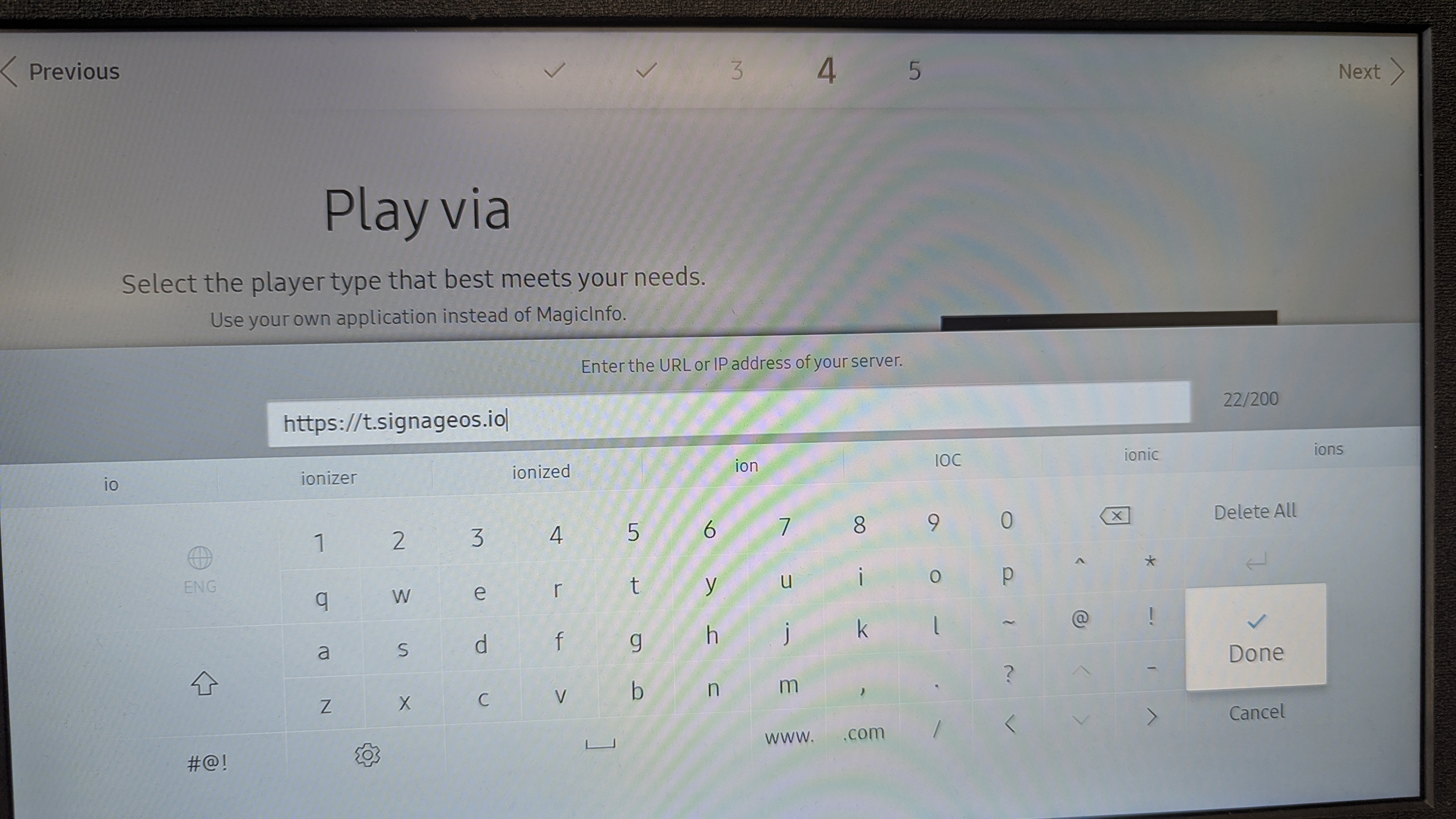
    <Step title="Fill in following URL and confirm">
      ![image](https://signagelab-alfa-space.fra1.digitaloceanspaces.com/documentation/images/en/samsung/s2.jpg)

      Link to the latest Samsung Tizen Core App:
      **[https://t.signageos.io](https://t.signageos.io)**

      Tizen Core App link [https://t.signageos.io](https://t.signageos.io) doesn't work directly in the browser. It works just and only on the Tizen device where it looks for specific xml file. It's the way the Tizen devices are 'recognizing' the installation file.
    </Step>

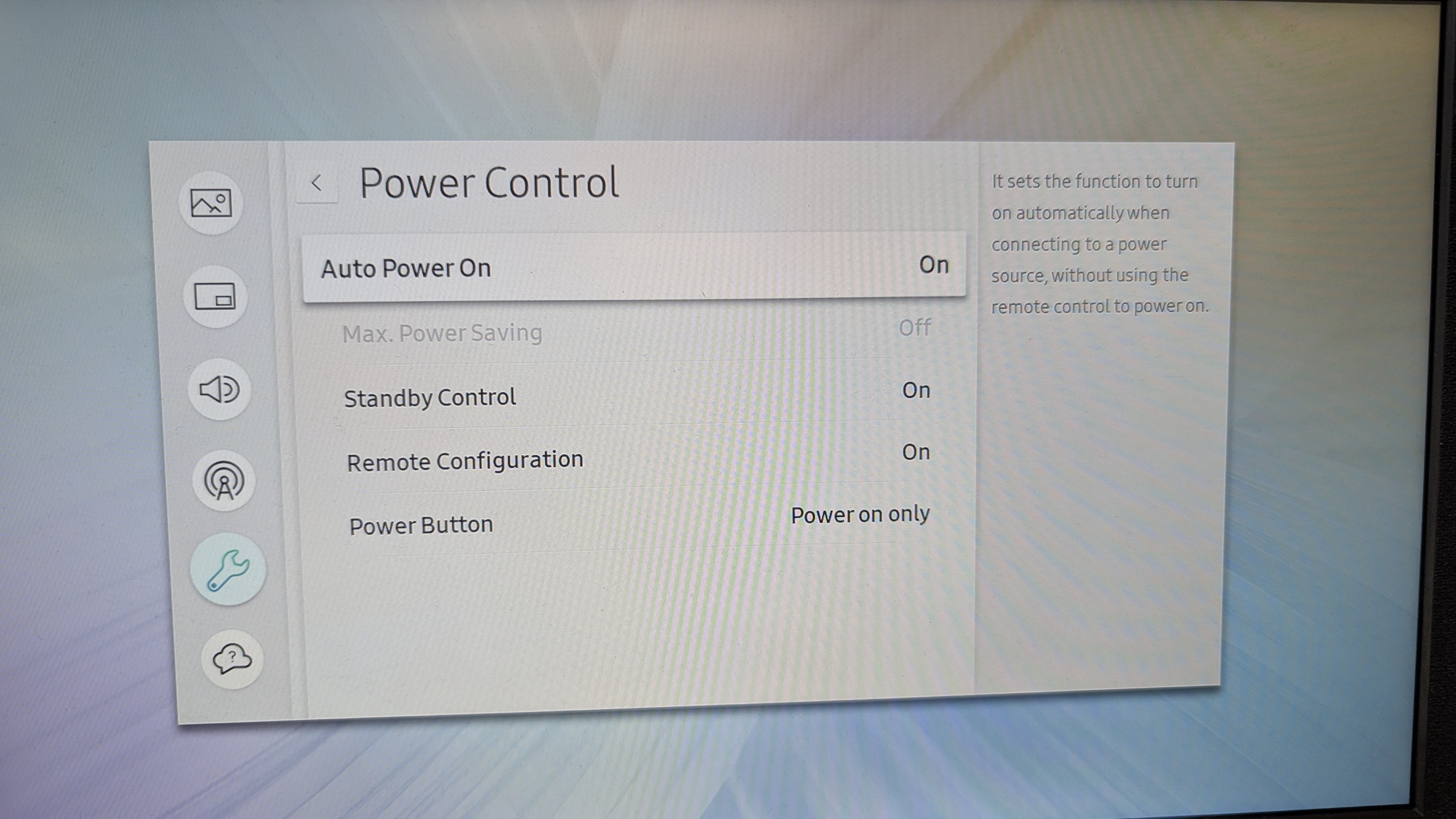
    <Step title="Go to Menu – System – Power control – Standby Control → select On" />

    <Step title="Go to Menu – System – Power control – Auto Power On → select On">
      ![image](https://signagelab-alfa-space.fra1.digitaloceanspaces.com/documentation/images/en/samsung/s3.jpg)
    </Step>

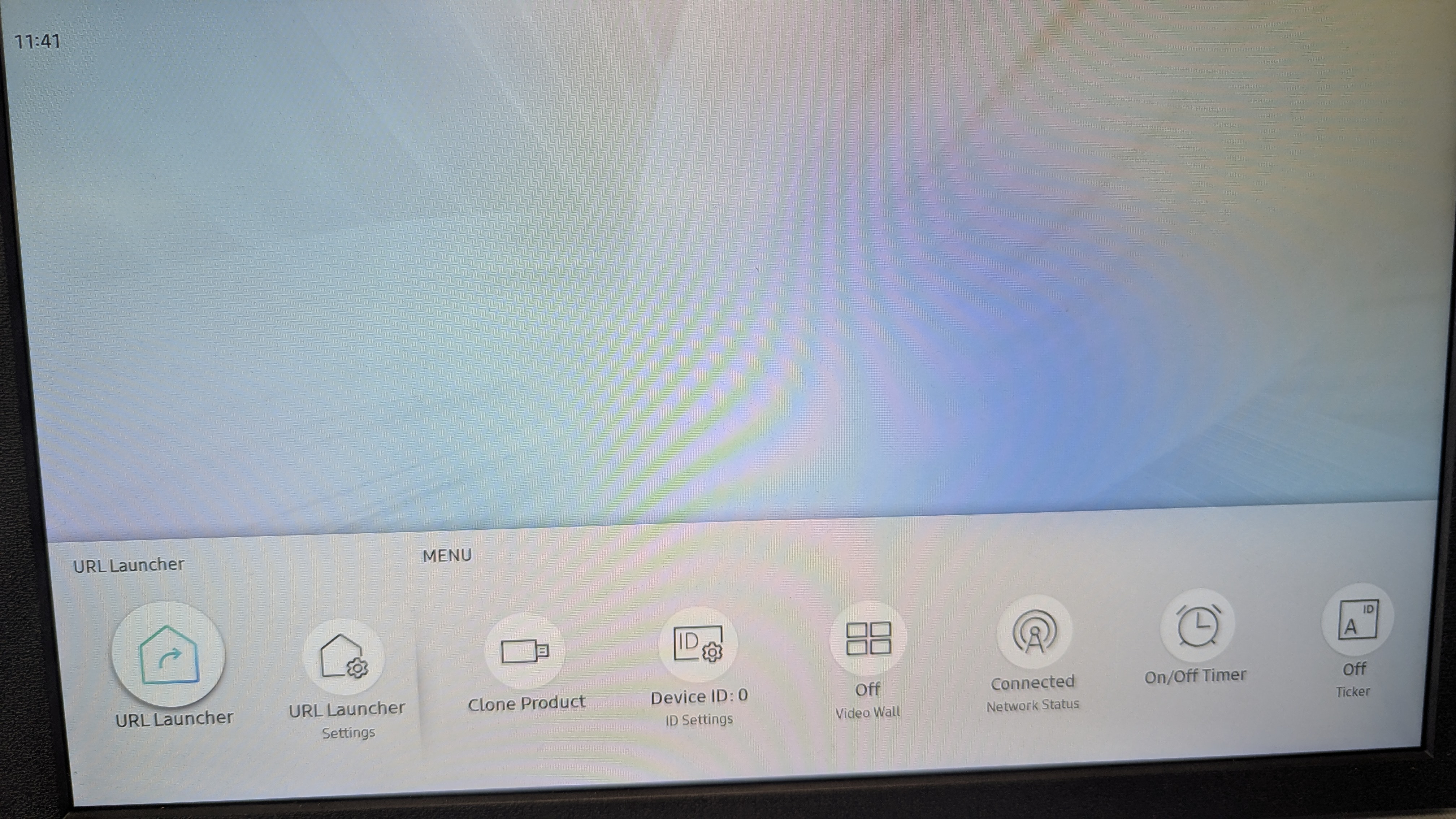
    <Step title="Select HOME and press first button – URL LAUNCHER">
      ![image](https://signagelab-alfa-space.fra1.digitaloceanspaces.com/documentation/images/cz/Samsung_Tizen/mceclip9.png)
      ![image](https://signagelab-alfa-space.fra1.digitaloceanspaces.com/documentation/images/en/samsung/s4.jpg)
      At this point, display connects to the Internet and download signageOS Core App for Tizen. Then it reboots itself and starts the signageOS App.
    </Step>
  </Steps>
</Accordion>

<Accordion title="Samsung Tizen 6.5 (QMB, QBB)">
  ## Installation steps

  Provisioning of newer Tizen models is very similar to the provisioning of older devices. Here are the individual steps on how to provision these and higher models.

  <Warning>If your signageOS application is not running after going through these steps or your device has previous settings already implemented, perform a full Factory Reset before continuing.</Warning>

  <Tip>To perform factory reset, power off your display and press **MUTE-1-8-2-power on** in sequence to bring up the OS menu.</Tip>

  Rest of this guide assumes you are provisioning a new/freshly reseted device.

  <Steps>
    <Step title="Firstly device must be correctly setup">
      These steps highlight the important steps during the initial setup of the device after the first power on.

      Setup your connection and ensure that your display has connection to the internet. Majority of displays supports both Wired and Wi-Fi connection, but it might depend on your specific device model.
    </Step>

    <Step title="Reading and accepting privacy agreement of Smart Signage is at your own discretion and will not affect the functionality of sOS software">
      Installation Type should be selected for **Basic Setup**.
    </Step>

    <Step title="Select your Display Orientation">
      For our demonstrative purposes we will choose Landscape.

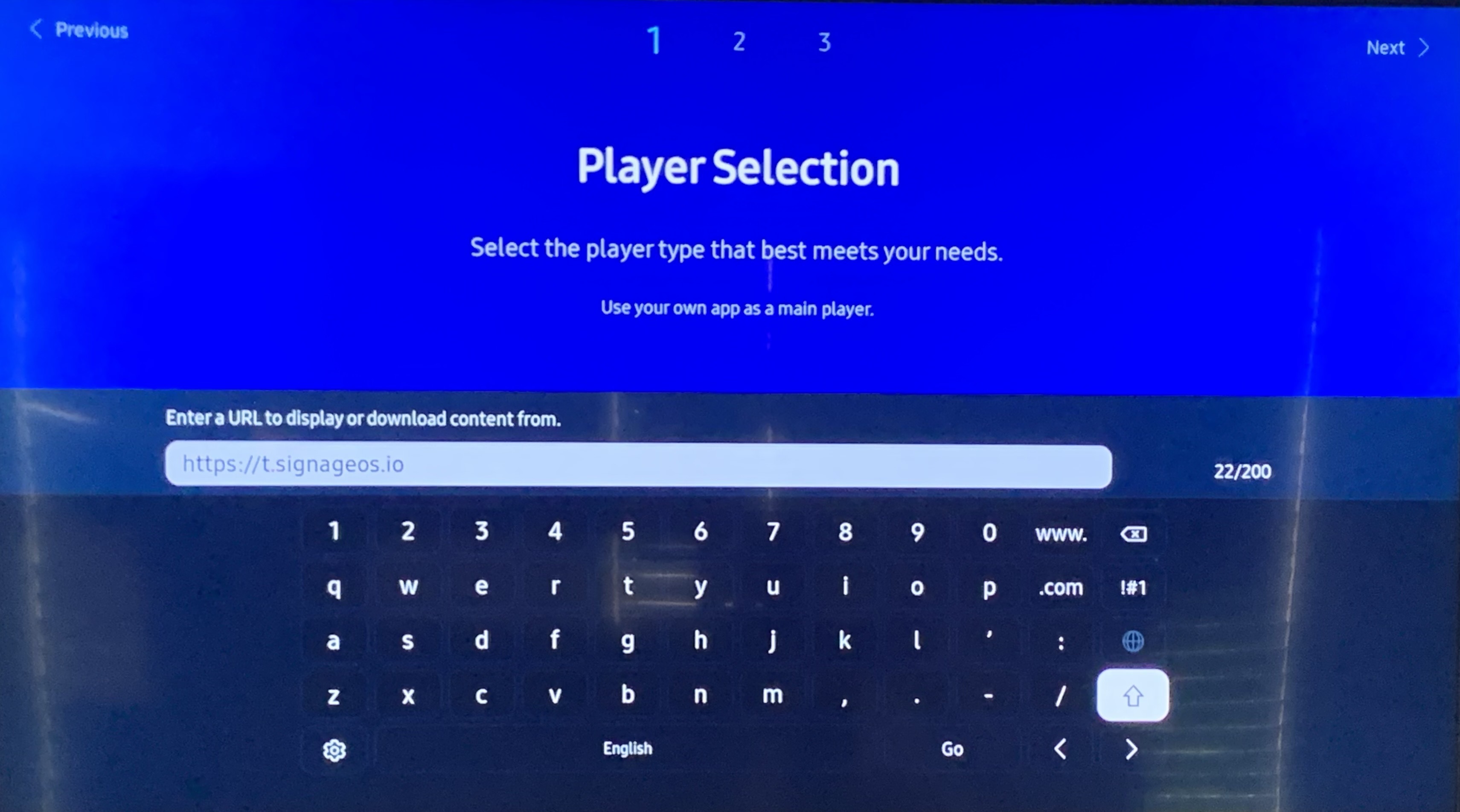
      Next step is **Player Selection** - select **Custom App** option.

      You will be prompted to input URL to download the Custom App. In this step please input the following address for the signageOS Core App:

      **[https://t.signageos.io](https://t.signageos.io)**
      ![image](https://1.signage-cdn.com/documentation/images/samsung/6-1.bin)
    </Step>

    <Step title="After inputting and confirming the address you will be asked about Connection to RM Server">
      This step can either be skipped or setup depending on your needs.

      Followed by **Auto Power Off** - For this step make sure **Off** is selected to prevent your display turning off after not being interacted with for a certain period of time.
    </Step>

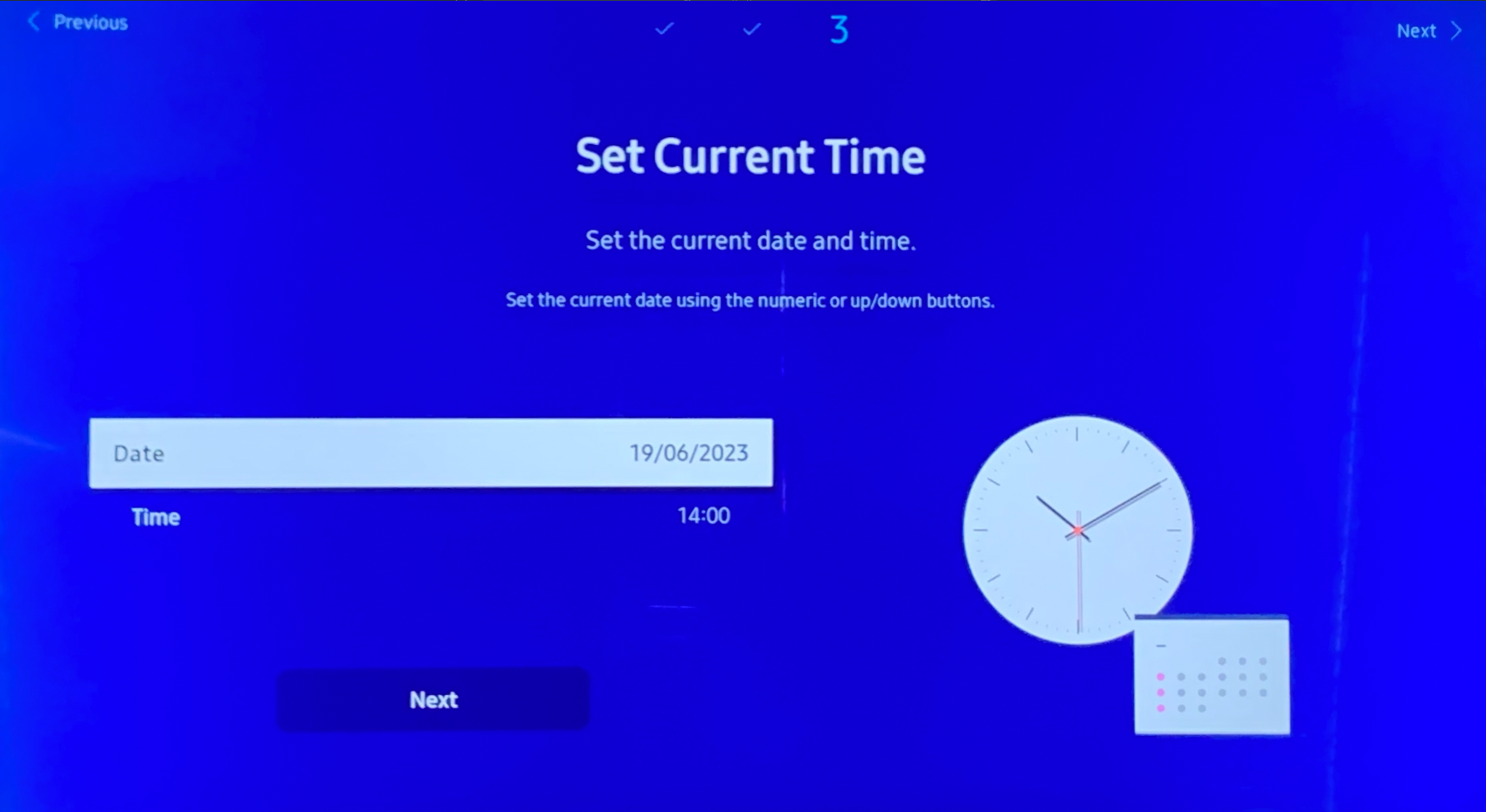
    <Step title="You will be prompted to set Date & Time during your initial setup">
      Make sure that Date & Time are set up correctly for your current location. These can be later adjusted through remote management in Box or REST API as necessary.
      ![image](https://1.signage-cdn.com/documentation/images/samsung/6-2.bin)

      For later changes you can navigate to Menu → System → Time and make any necessary adjustments.
    </Step>

    <Step title="If you followed all the steps in this guide your initial setup should be finished">
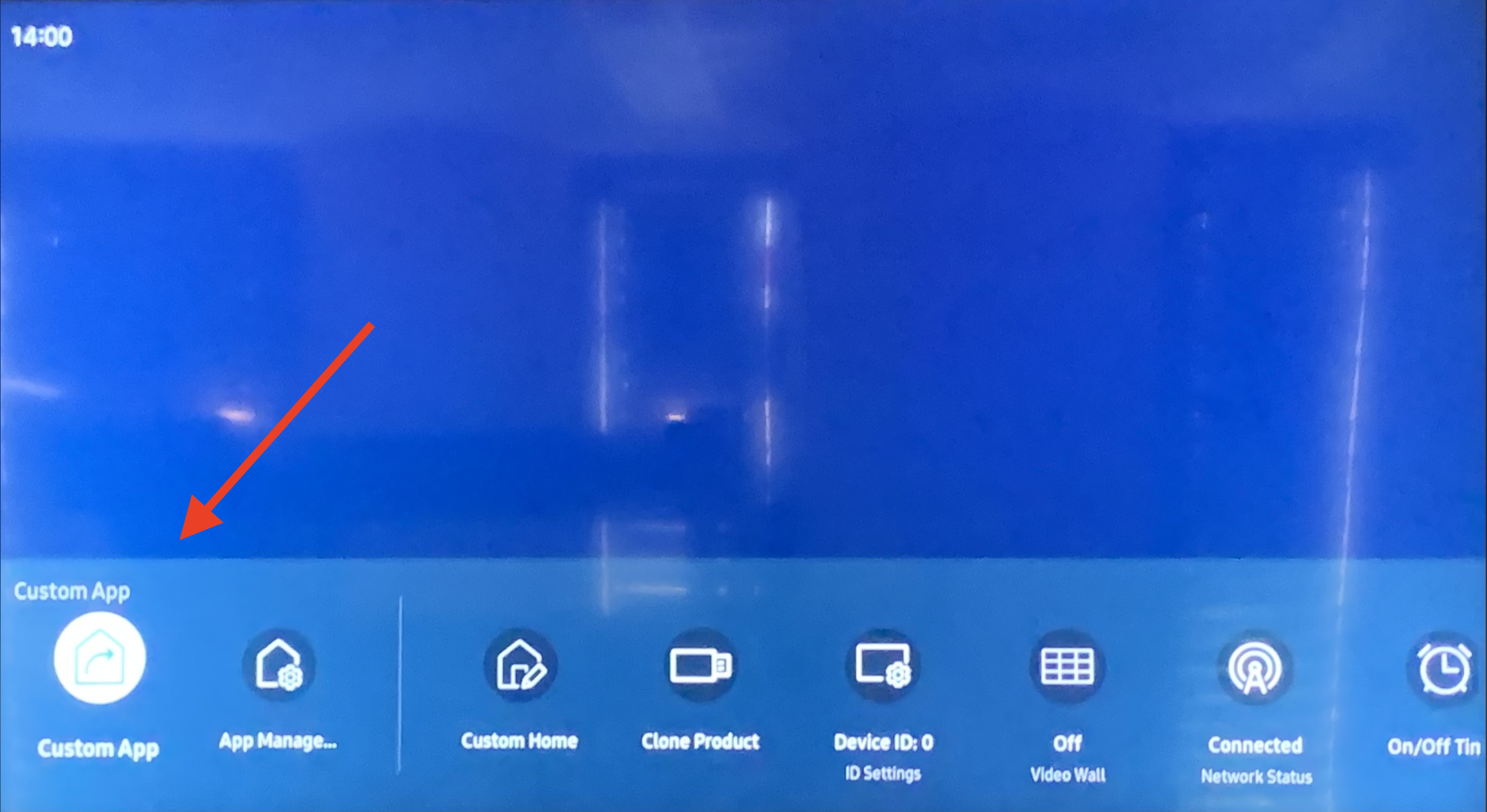
      You will be prompted what source should be used to display content on your device. Select **Custom App** and signageOS should download and start playing.

      <Warning>Make sure your date and time are correct before launching the application.</Warning>

      ![image](https://1.signage-cdn.com/documentation/images/samsung/6-3.bin)
    </Step>
  </Steps>
</Accordion>

<Accordion title="Samsung Tizen 7.0 (QBC, QHC, QMC)">
  ## Installation steps

  <Steps>
    <Step title="Switch display to HDMI (press Source button and select HDMI)" />

    <Step title="Open the HOME menu (press HOME on the IR Remote control)" />

    <Step title="Navigate to the Features section and select App Management icon">
      If you see "This function is not available", you did not switch to HDMI. Repeat step 1.
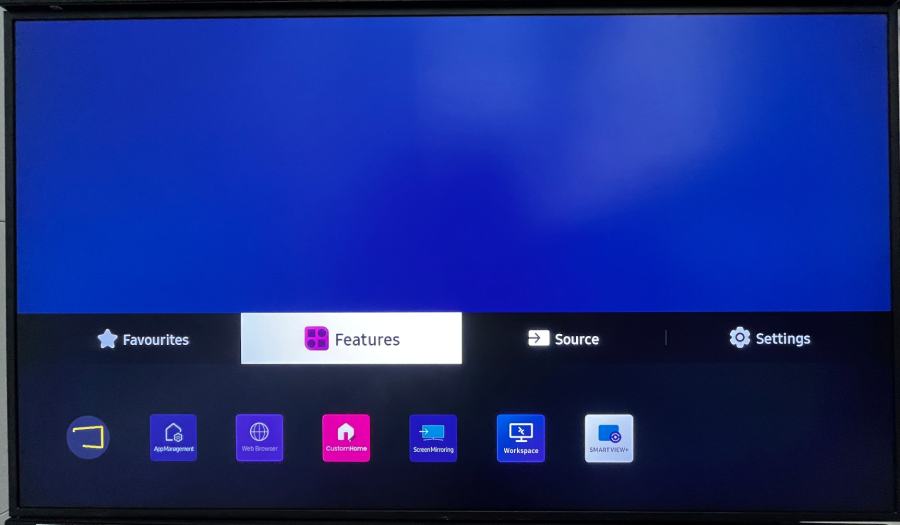
      ![image](https://1.signage-cdn.com/documentation/images/samsung/7-1.bin)

      ![image](https://1.signage-cdn.com/documentation/images/samsung/7-2.bin)
    </Step>

    <Step title="You will be prompted to input the URL to download the Custom App">
      In this step please input the following address for the signageOS Core App:

      <Warning>Make sure your date and time are correct before launching the application.</Warning>

      **[https://t.signageos.io](https://t.signageos.io)**
    </Step>

    <Step title="Confirm and reboot the display" />
  </Steps>
</Accordion>