> ## Documentation Index
> Fetch the complete documentation index at: https://docs.signagelab.com/llms.txt
> Use this file to discover all available pages before exploring further.
# AEM Channels
> Guide for creating an AEM Channels campaign in SignageLab CMS.
The AEM Channels campaign type displays content from Adobe Experience Manager (AEM) on your screens. Channels are fetched from your AEM instance and rendered as interactive widgets.
AEM Channels requires account-level configuration before use. An administrator must set the **Channels JSON URL** and **Widget URL** in the account settings.
## Procedure
Navigate to **Campaigns** in the SignageLab administration and click **Create**.
Fill in the **campaign name** and click **Submit**.
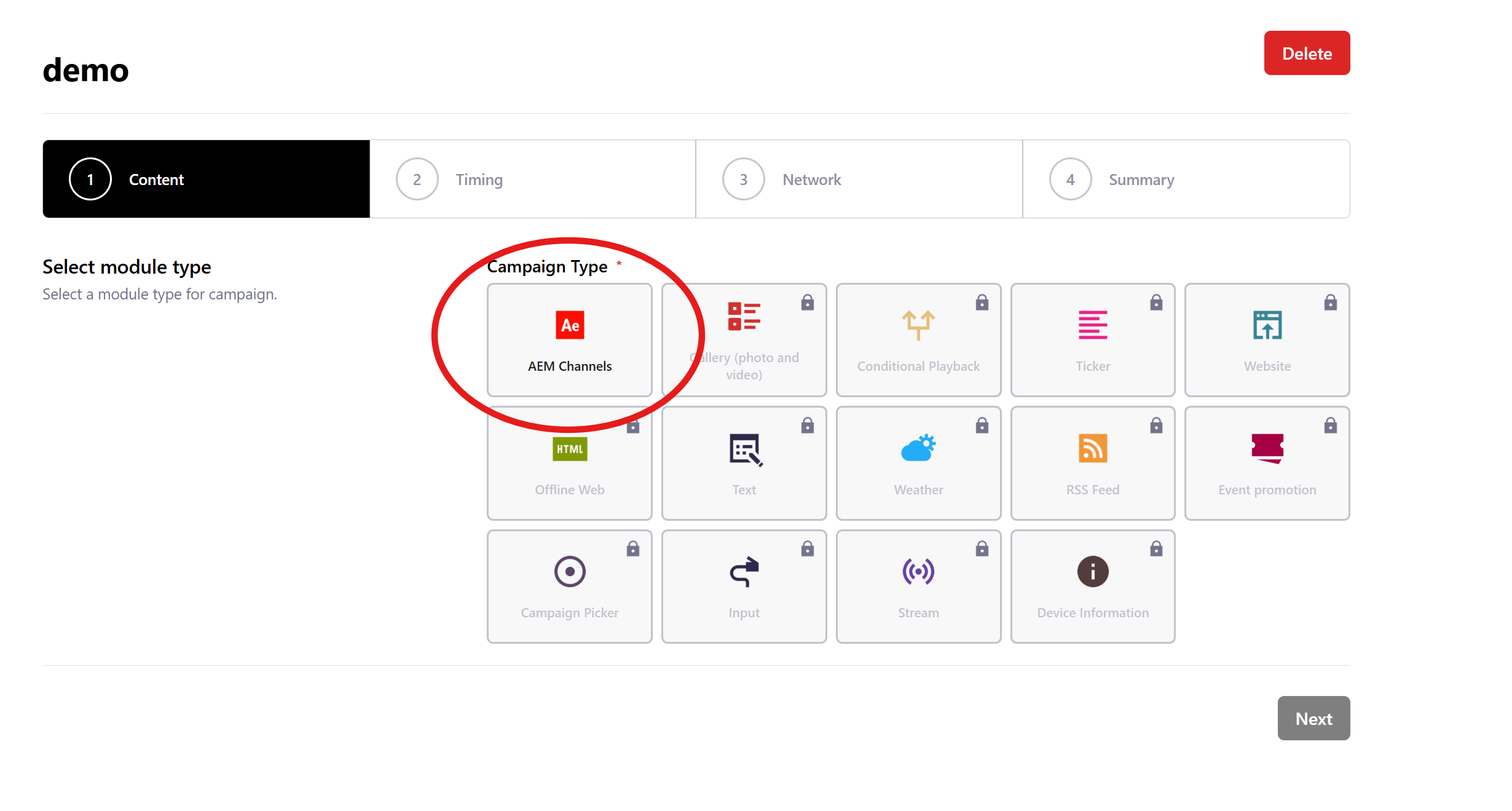
Select **AEM Channels** type.
Browse the channel tree to find the content you want to display. Folders can be expanded to reveal nested channels. Click a channel to select it — the selected path will be shown above the tree.
You can also configure the **Preload** option:
* **Preload enabled** (default): The widget is loaded in the background before it appears on screen, ensuring smooth transitions.
* **Preload disabled**: The widget loads only when it is about to be displayed.
Once your channel is selected, click **Next**.
Set when and how the campaign should play. After configuration, click **Save**.
* **Repeat**: How many times the campaign should play before the next one starts
* **Order**: The order in which the campaign should run
* **Priority**: Only the campaign with the highest priority plays
* **Campaign Broadcast**: Schedule from when and until when the campaign should be displayed on screens
* **Weekly Schedule**: Restrict the campaign to specific days and hours
Select the content area and displays where the campaign should appear. Optionally select tags and their relationship. Click **Save** to send the campaign to the selected displays.
Verify the campaign settings and **Publish** or save as **Draft**.