

AEM Channels requires account-level configuration before use. An administrator must set the Channels JSON URL and Widget URL in the account settings.
Procedure
1
Create Campaign
Navigate to Campaigns in the SignageLab administration and click Create.Fill in the campaign name and click Submit.
2
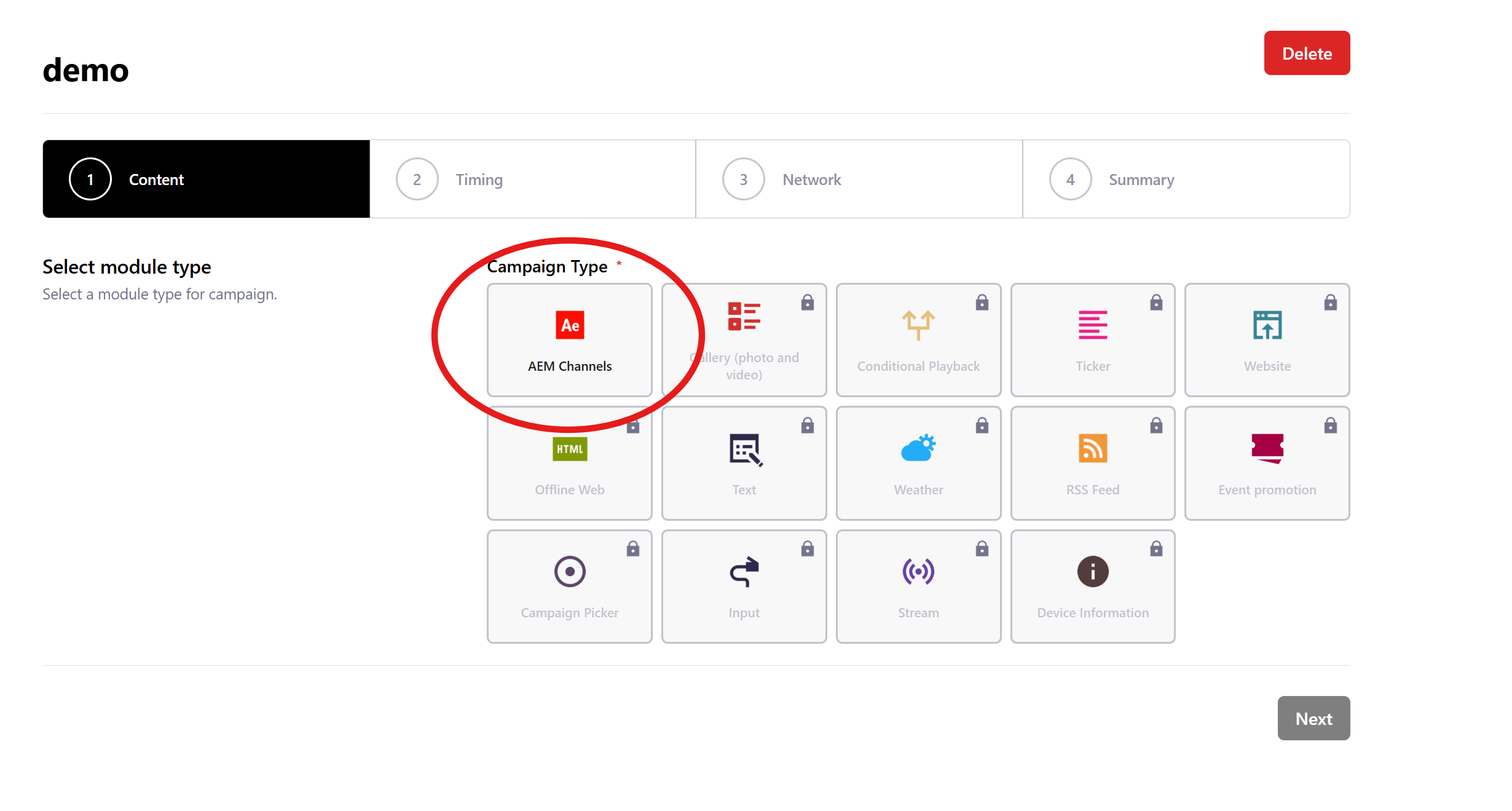
Select Campaign Type
Select AEM Channels type.
3
Select AEM Channel
Browse the channel tree to find the content you want to display. Folders can be expanded to reveal nested channels. Click a channel to select it — the selected path will be shown above the tree.You can also configure the Preload option:
- Preload enabled (default): The widget is loaded in the background before it appears on screen, ensuring smooth transitions.
- Preload disabled: The widget loads only when it is about to be displayed.
4
Campaign Scheduling
Set when and how the campaign should play. After configuration, click Save.
- Repeat: How many times the campaign should play before the next one starts
- Order: The order in which the campaign should run
- Priority: Only the campaign with the highest priority plays
- Campaign Broadcast: Schedule from when and until when the campaign should be displayed on screens
- Weekly Schedule: Restrict the campaign to specific days and hours
5
Select Displays
Select the content area and displays where the campaign should appear. Optionally select tags and their relationship. Click Save to send the campaign to the selected displays.
6
Summary and Publication
Verify the campaign settings and Publish or save as Draft.