

BenQ SL
BenQ SL
Prerequisites
You’ll need a remote control that came with the unit.You’ll also need a FAT32 formatted USB stick with the signageOS Core App APK file. You can download the latest APK for BenQ from https://a.signageos.io/benq.1
Allow installing apps from unknown sources
To install signageOS Core App from an APK file you’ll need to allow installing apps from unknown sources in system settings.Press the following buttons on the remote control: Home, 1, 6, 8, 8. This should open the Admin menu.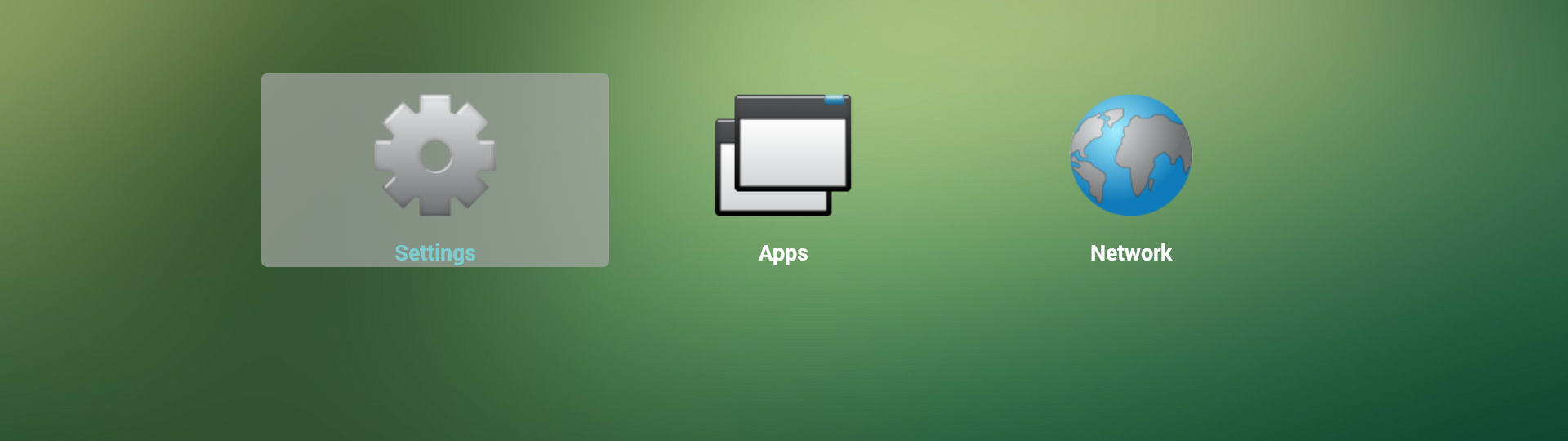 Select Settings, then Security.
Make sure Unknown sources option is enabled. This requires confirmation.
Select Settings, then Security.
Make sure Unknown sources option is enabled. This requires confirmation.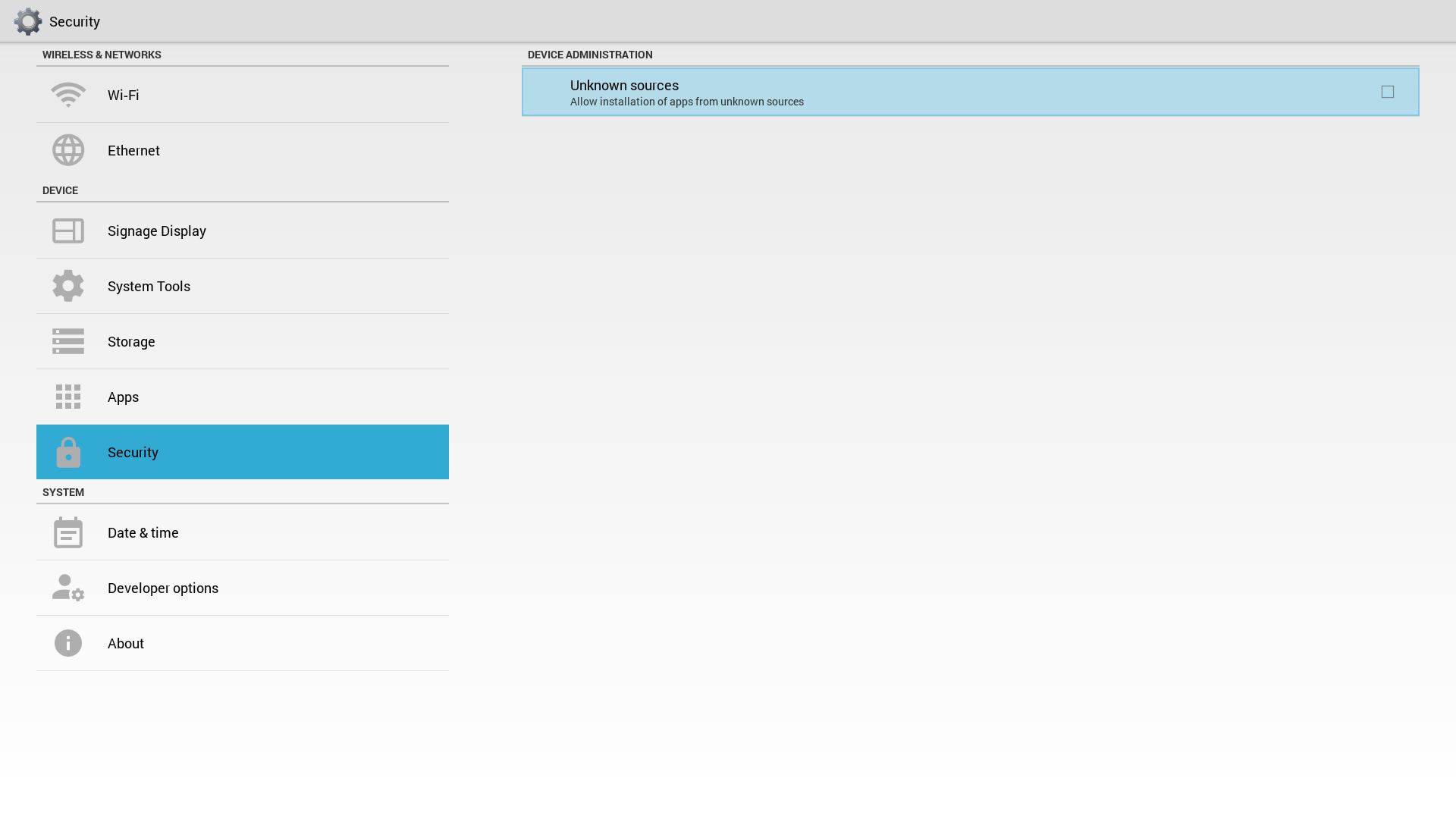 Leave by pressing the ⮌ button repeatedly.
Select Settings, then Security.
Make sure Unknown sources option is enabled. This requires confirmation.Leave by pressing the ⮌ button repeatedly.2
Install signageOS Core App from USB stick
Insert your USB stick into one of the USB ports on the back of the display.
Open ES File Explorer from the app launcher.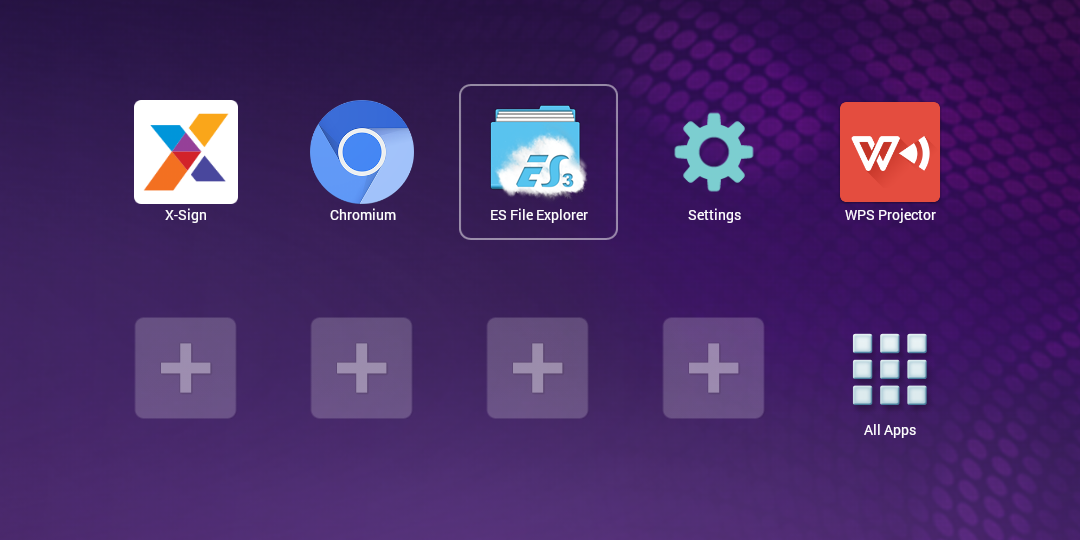 On the left side, navigate to usb_storage.
Select the APK on the right side and select Install from the menu.
Press the Install button.
On the left side, navigate to usb_storage.
Select the APK on the right side and select Install from the menu.
Press the Install button.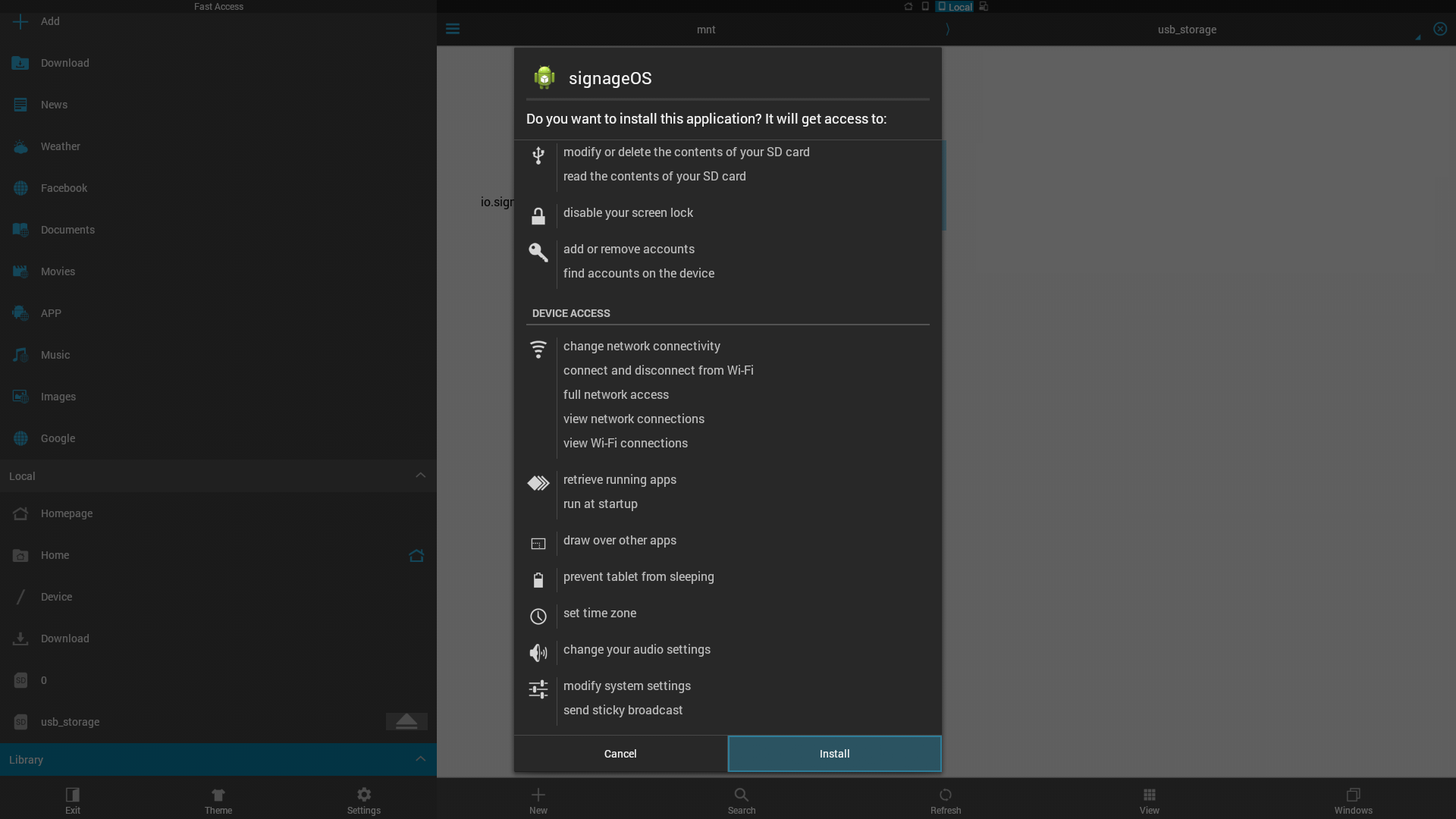 Once the installation finishes, press the Open button. You will be asked to install Device Management Platform app.
On the left side, navigate to usb_storage.
Select the APK on the right side and select Install from the menu.
Press the Install button.Once the installation finishes, press the Open button. You will be asked to install Device Management Platform app.3
Install Device Management Platform app
Press the Install button.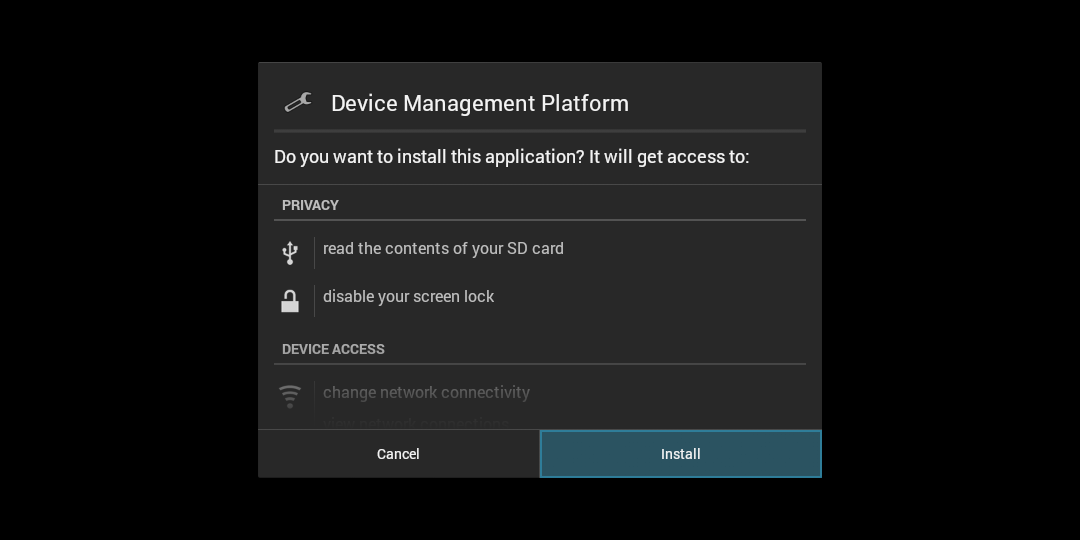 Once the installation finishes, press the Done button.
Once the installation finishes, press the Done button.Additional settings
To ensure proper functionality of your device additional settings may be necessary.Power failure recovery
To make sure your BenQ TV starts after a power outage you will need to set Switch on state to Force on.Press HOME (house icon) on the remote control. Navigate to Configuration 1 in the left menu and press OK. Navigate to Switch on state in the right menu and press OK. Navigate to Force on in the popup menu and press OK. Press HOME on the remote control again. signageOS will turn the screen on or off according to your timer settings.Remarks and notes
Native timer functionality is fully implemented in software.- Native timer off event causes the device to go into standby mode - content is disabled, signageOS is live, Android is live, the network is online, screen is off, LED is blinking red/orange.
- Proprietary timer off causes only screen off - content is disabled, signageOS is live, Android is live, the network is online, screen is off, LED is green.
- Native timer on and Proprietary timer on events cause the screen to turn on. This causes Android reboot only when coming from standby mode.
- Display on and Display off commands do the same thing as proprietary timer events.
- Native timer on events are also scheduled for the next 7 days using TV API. This is a failover mechanism that kicks in if the TV enters true standby (device off, network offline, LED is red). This doesn’t work after a power outage!
BenQ SL2K
BenQ SL2K
Prerequisites
You’ll need a remote control that came with the unit.You’ll also need a FAT32 formatted USB stick with the signageOS Core App APK file. You can download the latest APK for BenQ from https://a.signageos.io/benq.1
Allow installing apps from unknown sources
In order to install signageOS Core App from an APK file you’ll need to allow installing apps from unknown sources in admin menu.While on home screen, press the following buttons on the remote control: MENU, ▲, ▲, ▼, ▼, BACK This should open the Admin menu.
On older model the combination is HOME, 1, 6, 8, 8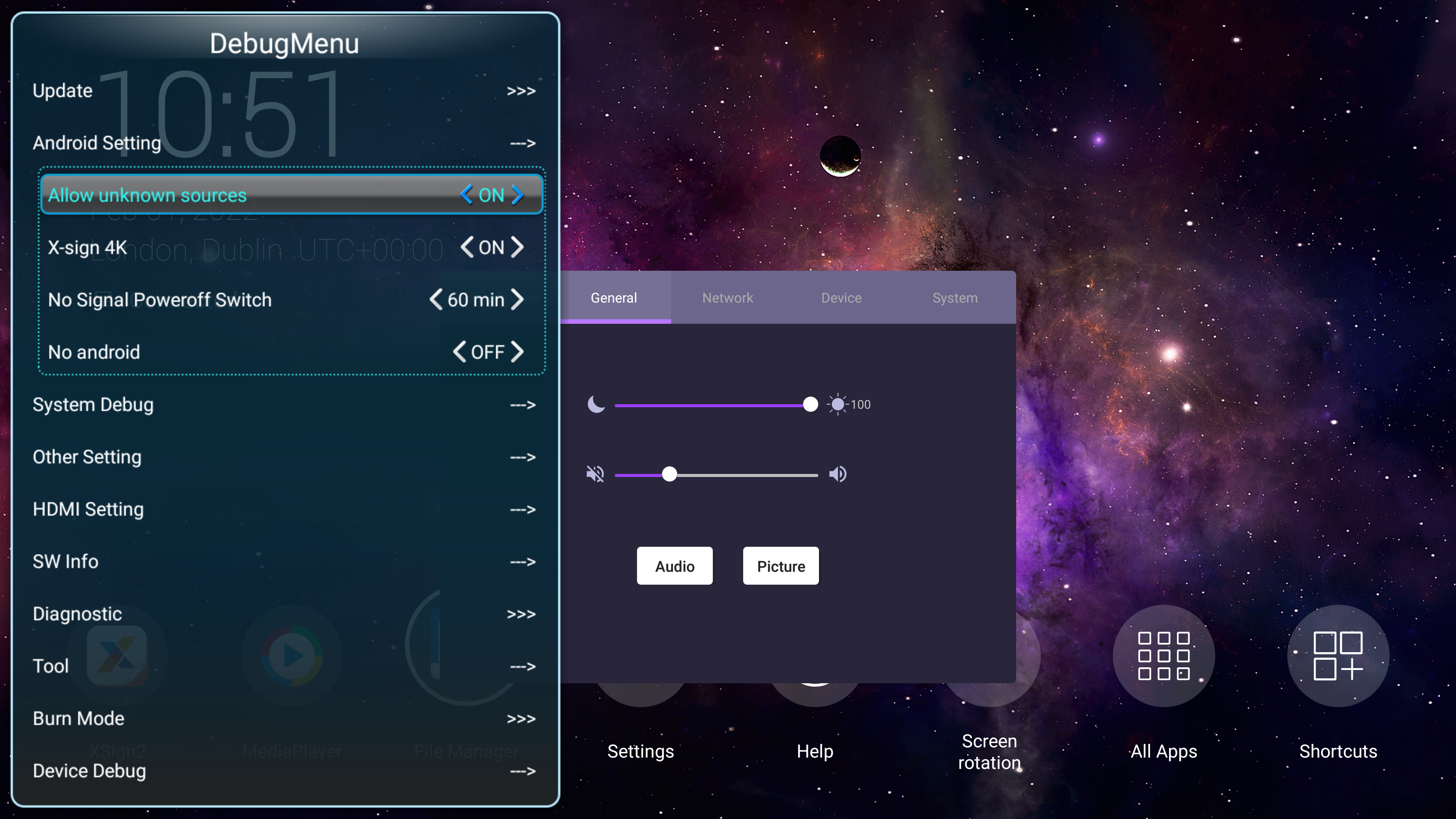 Open the Android Setting submenu.
Make sure Unknown sources option is set to < ON >.
Leave by pressing the BACK button repeatedly.
Open the Android Setting submenu.
Make sure Unknown sources option is set to < ON >.
Leave by pressing the BACK button repeatedly.
Open the Android Setting submenu.
Make sure Unknown sources option is set to < ON >.
Leave by pressing the BACK button repeatedly.2
Install signageOS Core App from USB stick
Insert your USB stick to one of the USB ports on the back of the display.
Open File Manager from the app launcher.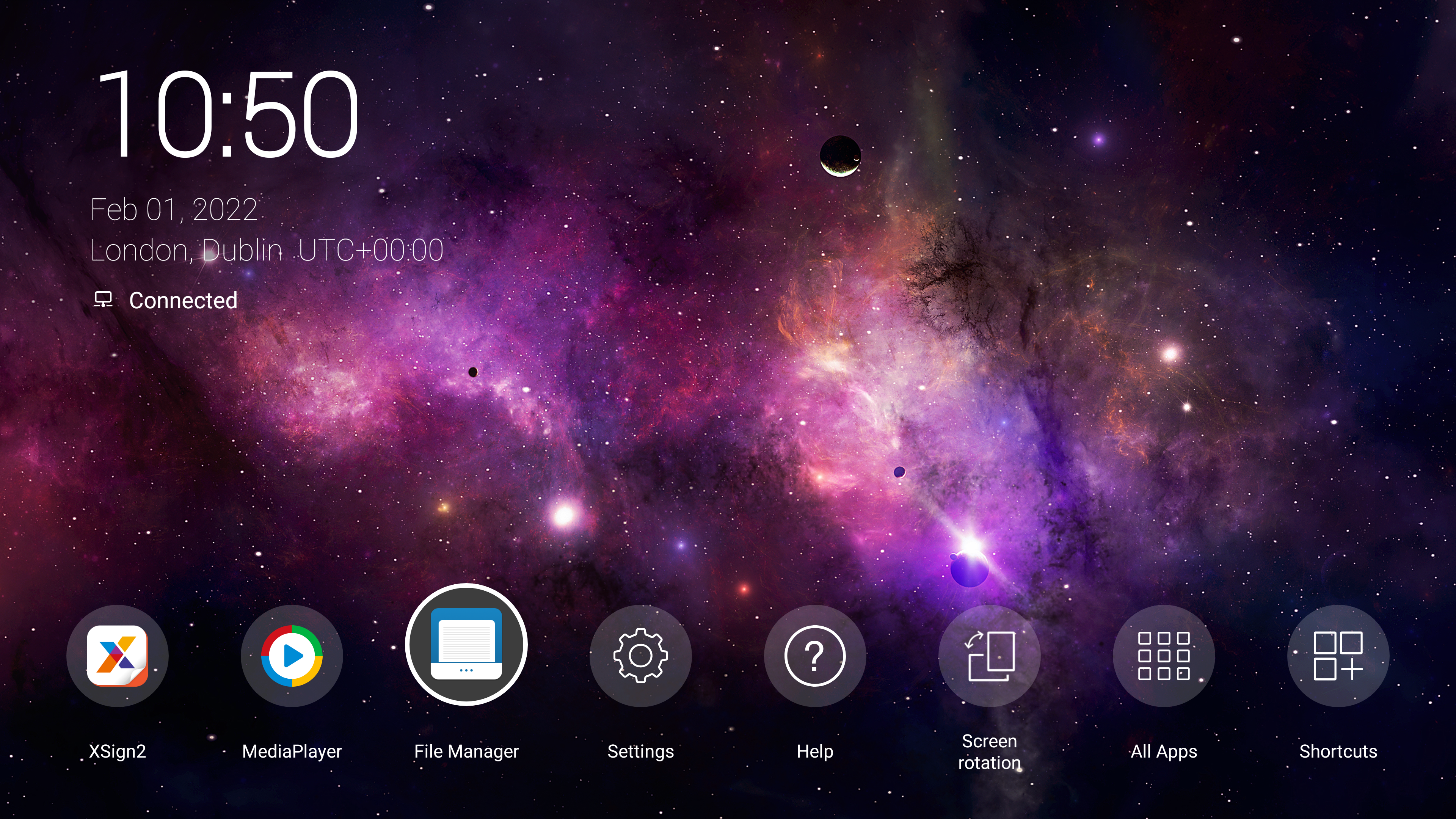 On the left side, select MEDIA, then open APK in the middle of the screen.
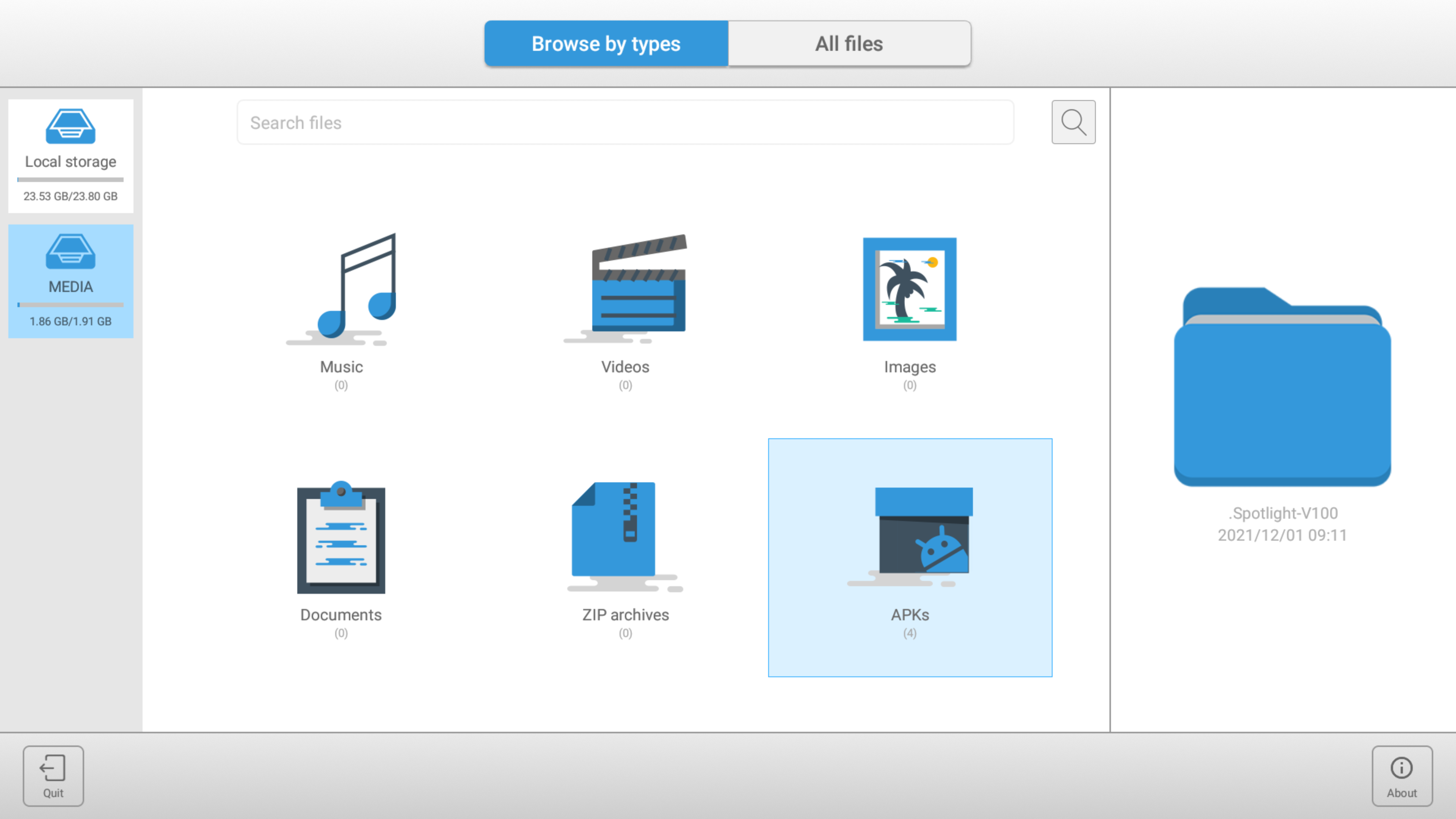 Select the APK on the right side and select Install from the menu.
Press the Install button.
Select the APK on the right side and select Install from the menu.
Press the Install button.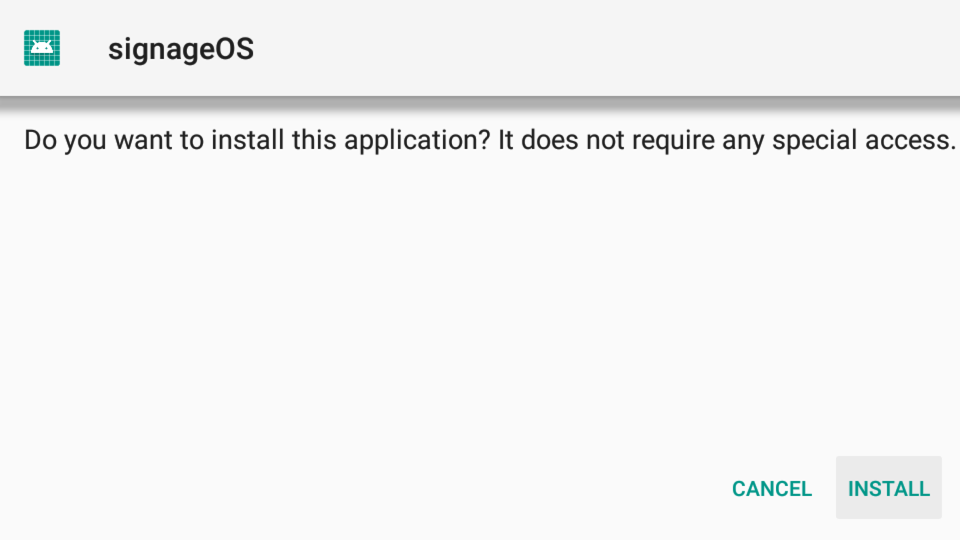 Once the installation finishes, press the Open button.
On the left side, select MEDIA, then open APK in the middle of the screen.Select the APK on the right side and select Install from the menu.
Press the Install button.Once the installation finishes, press the Open button.Additional settings
To ensure proper functionality of your device additional settings may be necessary.Power failure recovery
To make sure your BenQ TV starts after a power outage you will need to set Switch on state to Force on.Press HOME (house icon) on the remote control. Navigate to Configuration 1 in the left menu and press OK. Navigate to Switch on state in the right menu and press OK. Navigate to Force on in the popup menu and press OK. Press HOME on the remote control again. signageOS will turn the screen on or off according to your timer settings.Remarks and notes
Native timer functionality is fully implemented in software.- Native timer off event causes the device to go into standby mode - content is disabled, signageOS is live, Android is live, the network is online, screen is off, LED is blinking red/orange.
- Proprietary timer off causes only screen off - content is disabled, signageOS is live, Android is live, the network is online, screen is off, LED is green.
- Native timer on and Proprietary timer on events cause the screen to turn on. This causes Android reboot only when coming from standby mode.
- Display on and Display off commands do the same thing as proprietary timer events.
- Native timer on events are also scheduled for the next 7 days using TV API. This is a failover mechanism that kicks in if the TV enters true standby (device off, network offline, LED is red). This doesn’t work after a power outage!