

Installation steps
1
Turn on the display
2
Download signageOS latest Android app to USB flash drive
Download signageOS latest Android app to USB flash drive, the latest app is at https://a.signageos.io/
3
Insert flash drive into Philips' USB port
Insert flash drive with our app into Philips’ USB port, make sure to use the correct USB port, otherwise there might be permission issues
4
Press HOME and 1888 on the remote control
5
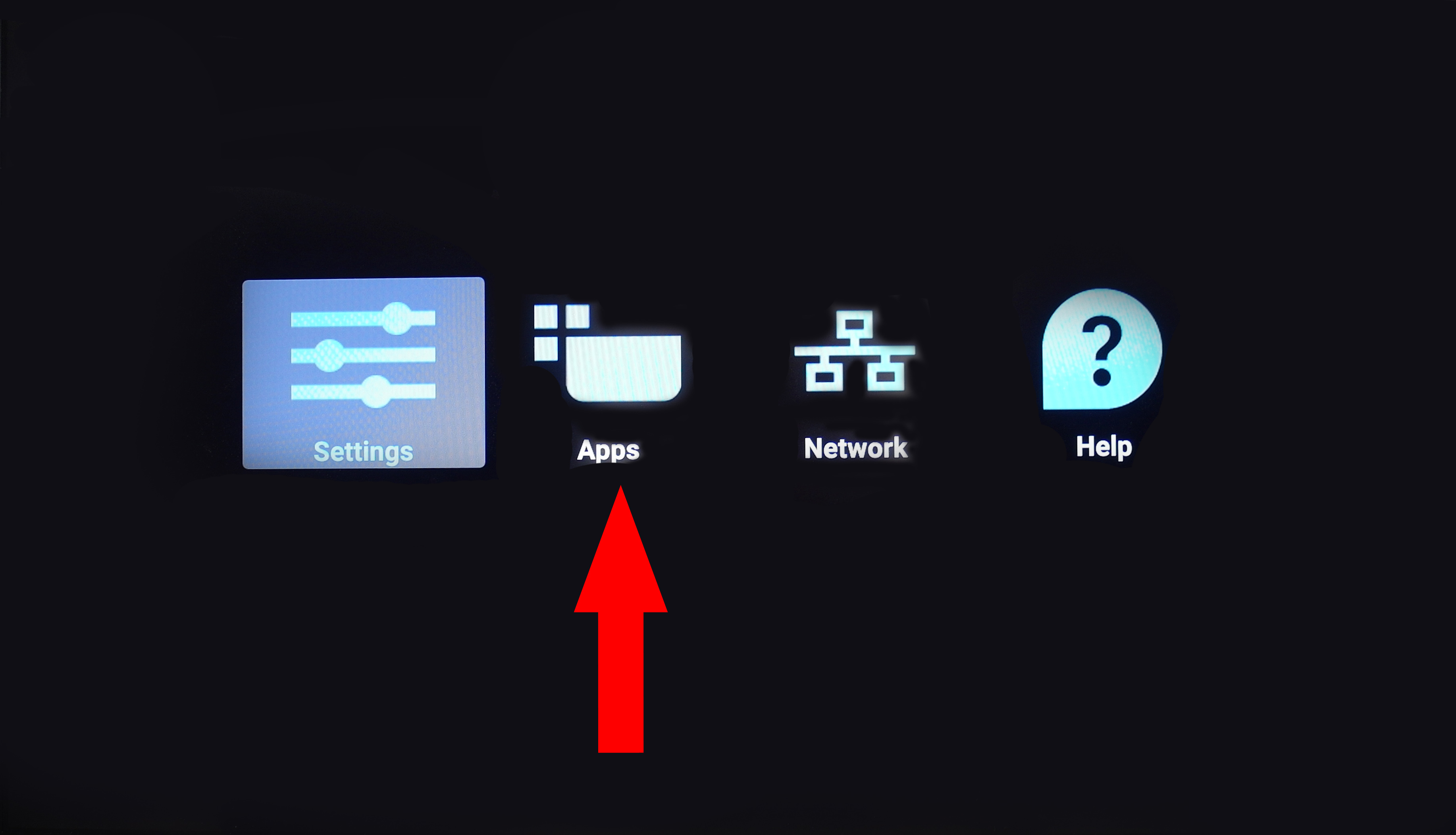
Select Apps
6
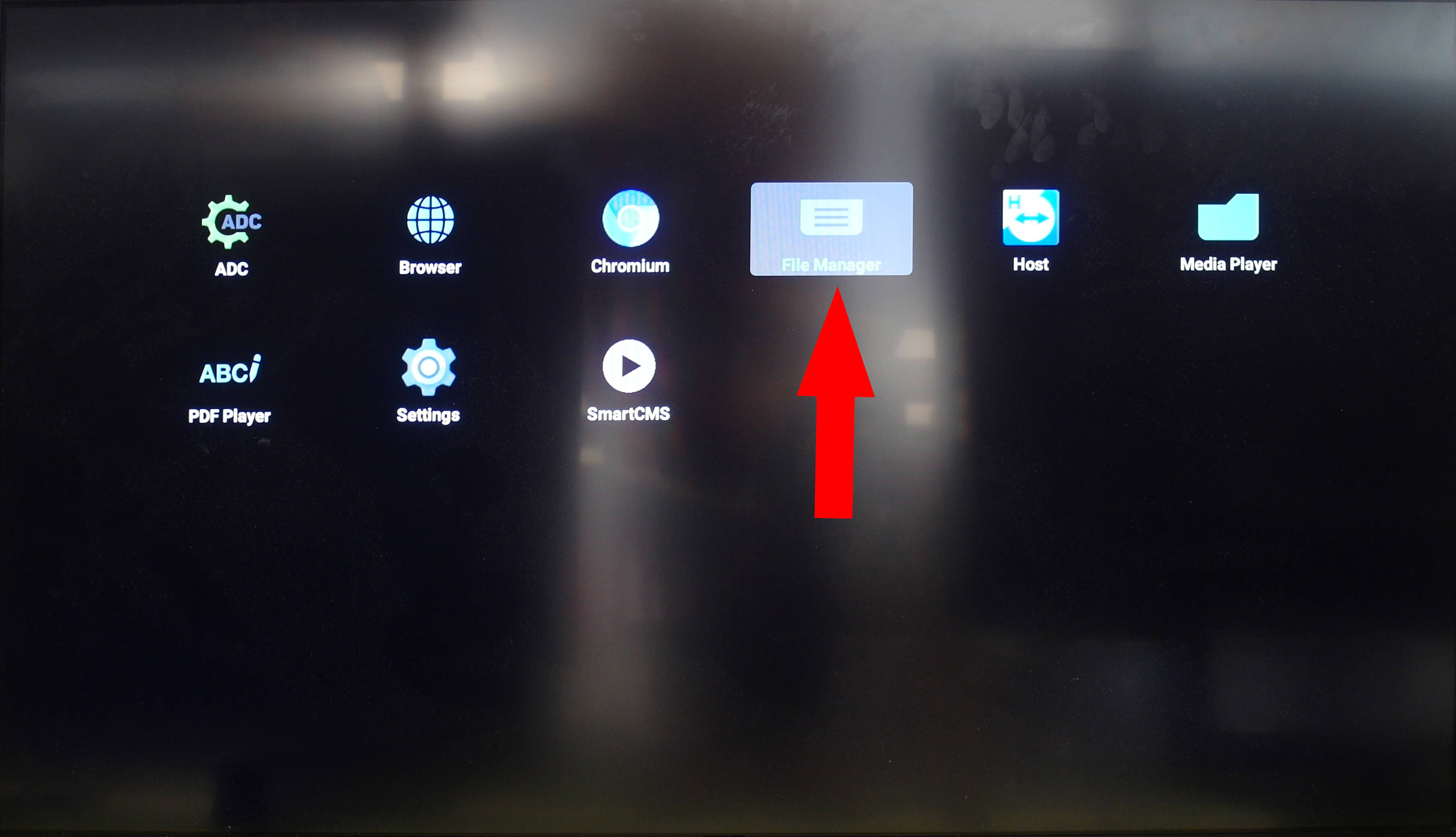
Select File Manager
7
Navigate to /mnt/usb/
8
Select signageOS App
9
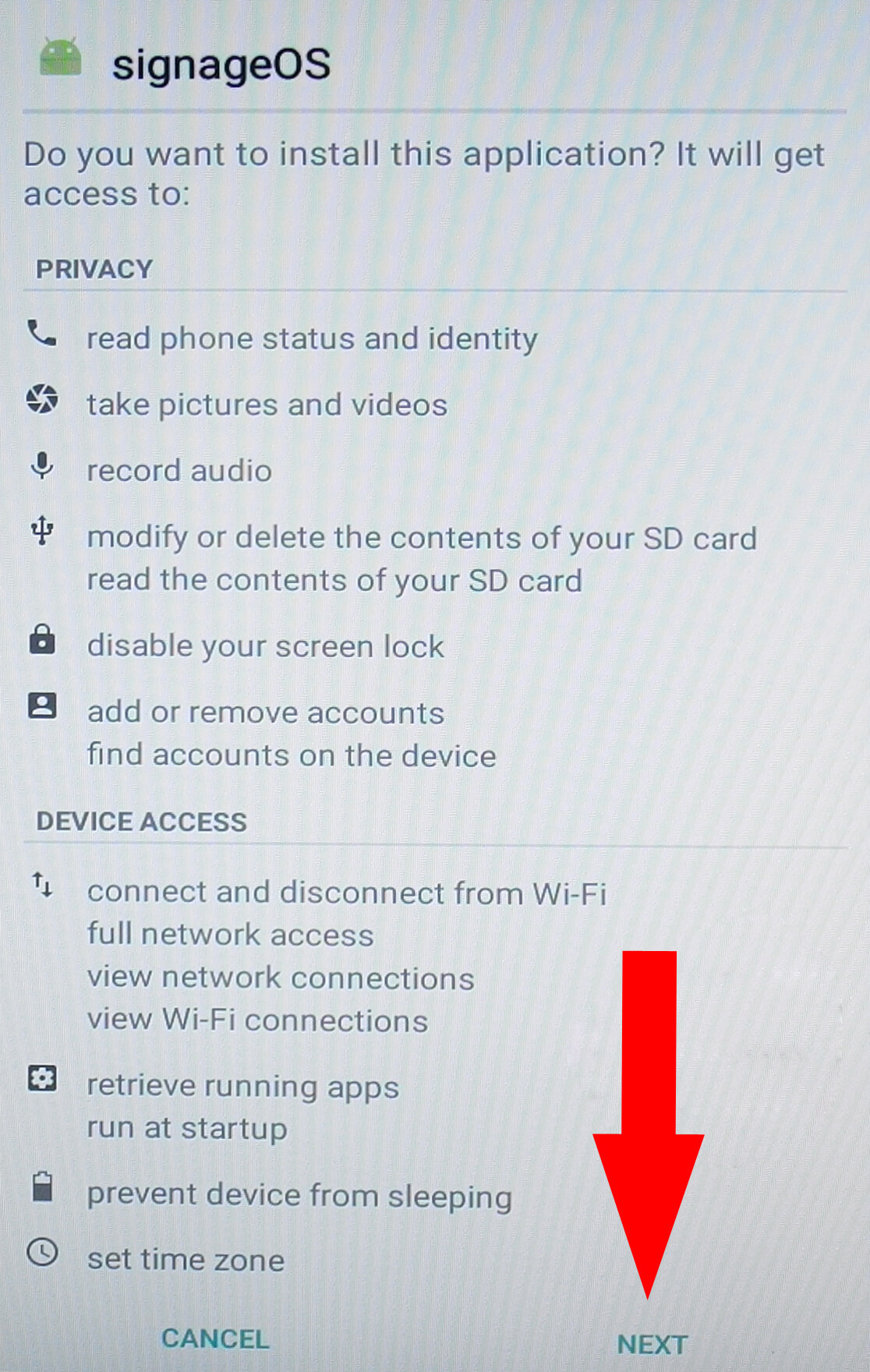
Select Install
10
Go back to HOME
11
Select Settings
For 10” Touch 10BDL
- Go to Apps section
- Select Signage Apps
- Check signageOS App and primary Signage App
- Restart the display
- To access Android setting press MENU and VOLUME DOWN simultaneously to bring up the options
For any other Philips display
- Go to Signage Display section and Boot section
- Select Custom App
- Check signageOS App is set as custom app, if not, select it
- Restart the display